


TV Cast Pro for Roku
4.4638.00 Reviews
App Specs
- Version
- 2.48
- Updated On
- License
- $6.99
- Downloads
- 50,000+
- Developer
- 2kit consulting
- Categories
- Video Players & Editors
- Platform
- Android, iOS
Screenshots
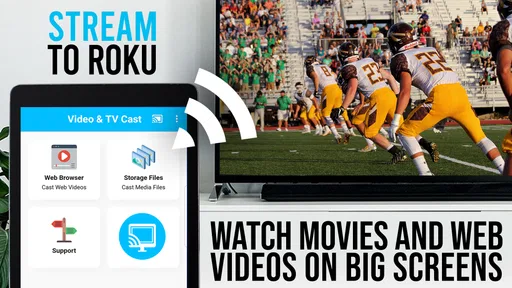
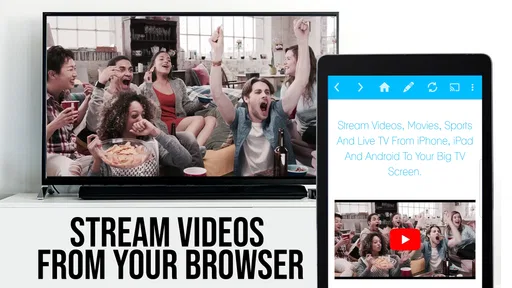
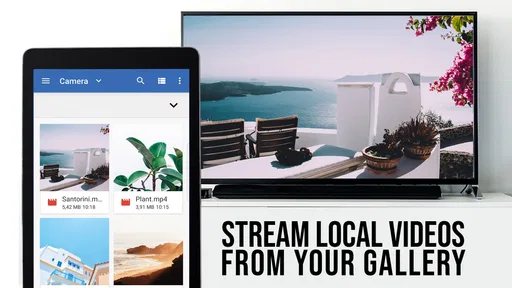
 Analysis by AppCompare
I find casting apps most useful when they make a specific task easier, not when they promise to replace every way of watching TV. This one is built around sending web video from a phone or tablet to a Roku, so its value depends on what you watch and how comfortable you are browsing for it. Its browser-and-remote approach can help when a video is available on a website but is awkward to view on a small screen.
Who benefits from a browser-led approach
I would consider TV Cast Pro for Roku if I often find video on the web and want to move it to a larger screen without searching for the same material in a separate TV app. That distinction matters: this is not simply another way to mirror everything on a phone. It puts web browsing and Roku control at the center, which can be handy for clips, online films, and live streams that are available through a browser.
For someone who mostly opens a familiar streaming service and presses play, the service’s own Roku app is usually the simpler route. Native apps are designed around their own catalogs and controls; a casting browser is more useful when the source is a website. I see it as a complementary tool rather than a universal replacement for the apps already on the TV.
Reading, navigation, and the phone-to-TV handoff
A browser changes the viewing routine: you search or open a page on the mobile device, then send eligible video to Roku. That can be convenient, but it also means the phone remains part of the process. You may need to locate the right player on a page before casting, and a site that rearranges its controls or places several video elements together can take more effort than choosing a title in a dedicated TV app.
Bookmarks are especially useful here. I would save a few trusted pages that I revisit rather than repeatedly searching from scratch. That reduces typing and makes the browser feel more like a purposeful shortcut than a general-purpose web browser. Playlists can also help when I already know what I want to watch, though they are best treated as an ordered queue rather than a guarantee that every site’s videos will behave identically.
The remote function gives the phone a second job after the video reaches the television. For a household, that can make it easier to manage playback from the sofa without reaching for a separate control. It is still worth keeping the Roku remote nearby: the app is most helpful when its phone-based controls fit the moment, not when you need a guaranteed substitute for every Roku function.
Motor and sensory considerations
Using a phone can be easier than navigating a television interface for people who prefer familiar touch controls or find small on-screen TV keyboards awkward. On the other hand, browsing a page may require repeated taps, scrolling, and precise selection of a video player. If those actions are uncomfortable, a native Roku app with a simpler title-and-play flow may be less demanding.
Worth Reading Before You Choose

EA SPORTS FC Mobile 26 Is a Bigger Football Game, but It Takes Time

Flipboard Shows What News Apps Must Do Beyond the Feed

Switching to Android Auto Means Rethinking Your Driving Routine

Google Calendar Makes a Crowded Week Easier to Manage

Ludo King Makes the Most of the Minutes Between Plans

Baby Panda World Brings Quick Play to Modern Phones, but Its Game Library Feels Busy
Subtitles are a welcome option for viewers who follow dialogue better with text, watch in a noisy room, or prefer reading along. Their availability and appearance can depend on the video source, so I would check a short clip before settling in for a longer watch. The app’s ad-blocking can reduce interruptions on some sites, but it is not a reason to expect every page to become quiet or uncluttered.
For a shared living room, the phone-to-TV setup can make content easier for more than one person to see, while the person holding the phone still handles much of the navigation. I would agree on who is choosing and controlling playback before starting a group watch; that small step avoids passing the phone around while everyone waits.
When the room or connection changes
A realistic use is finding a short how-to video on a website while preparing dinner, then casting it so the instructions are visible from across the kitchen. Another is sending a family clip to the TV when everyone is gathered, rather than asking people to crowd around one phone. In both cases, the benefit is less about spectacular picture quality and more about putting a particular web video where people can comfortably watch it.
The same workflow is less appealing when the phone needs to leave the room, when you want to keep browsing privately, or when the household depends on a single device for other tasks. Since the phone initiates the browsing and casting, I would open the page and confirm the video is ready before handing attention back to cooking, conversation, or anything else. Live streams deserve a quick test first, because a page that works for an on-demand clip may present different controls or interruptions during a live broadcast.
Network conditions matter too. The phone and Roku need to be on the same Wi-Fi network for the setup described by the app, and a weak or busy connection can make the experience less dependable. If playback stutters, I would first check that both devices are connected as expected and try a shorter video from the same source. That helps distinguish a page-specific problem from a general connection issue before changing the whole setup.
Where it fits among alternatives
Compared with screen mirroring, browser casting is a more focused choice: the goal is to send a video from a website, rather than show the entire phone display on the television. That can be useful if you want the TV to show the video while keeping the phone available for the browser and controls. If your aim is to display a presentation, a photo app, or an interface that is not a web video, mirroring or a dedicated sharing option may make more sense.
Compared with opening a native Roku channel, this approach may save time when the content lives on a site without a convenient TV app. The trade-off is that websites are not all built alike. A video embedded in a page may be easy to find, while a page full of pop-ups, layered players, or changing controls can make casting fiddly. I would choose the native app for regular services and keep this app for the web sources that justify the extra step.
What to check before settling in
Before a long watch, I would test the exact source with a brief clip, confirm subtitles if I need them, and make sure the Roku is selected correctly. This is a practical way to catch a player that will not cast cleanly before a movie night or family gathering depends on it. If a page has several video options, starting playback on the phone first can also make it clearer which one I intend to send to the TV.
It is also sensible to think about how much browsing you want to do from a phone. The app is a poor fit for someone who wants a large catalog, recommendations, and a consistent remote-first interface without visiting websites. It is better suited to a person who already knows where a video is hosted and values getting that particular video onto Roku.
Setting the Stage: Installation and Setup
First things first, getting started with TV Cast Pro for Roku is a breeze. I downloaded it from the app store, and within minutes, I was ready to roll. The installation process is straightforward, and the app guides you through the setup with clear instructions. Just ensure your device and your Roku are on the same Wi-Fi network, and you're good to go. I love how the app doesn't require any extra hardware or fiddling with cables—it's all about keeping things simple.
User Interface: Clean and Intuitive
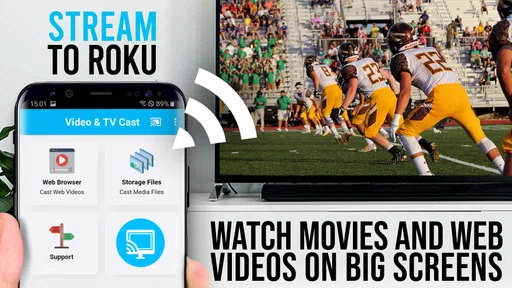
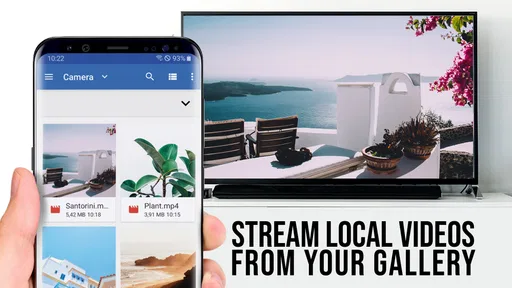
Once you’re in, the user interface is sleek and intuitive. The design is minimalistic, focusing on functionality over flashy graphics. The main screen gives you quick access to all the essential features, and I appreciate how it doesn’t overwhelm you with options. You can easily navigate to your saved videos, browse the web within the app, or cast content from your gallery with just a few taps.
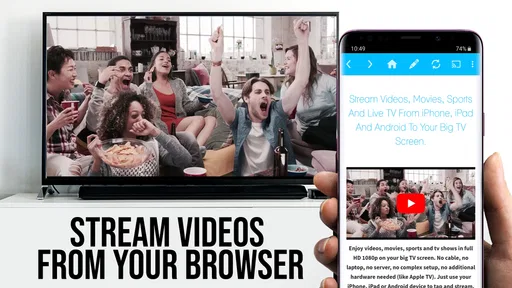
One of the standout features is the browser capability. You can surf the web directly within the app and stream videos from virtually any website. The browser is smooth, and loading times are generally quick, which makes for a seamless experience.
Streaming Quality: Crisp and Clear
Now, the moment of truth—how well does it stream? In my experience, the streaming quality is top-notch. Videos play smoothly without any noticeable lag, and the picture quality is crisp, making it perfect for movie nights or binge-watching sessions. The app supports a variety of video formats, so you won’t have to worry about compatibility issues.
I tested casting multiple types of content, from home videos to streaming services, and it handled everything with ease. There’s something incredibly satisfying about seeing your favorite content on the big screen without any hiccups.
Features That Shine
One feature I particularly enjoyed is the ability to bookmark your favorite sites directly in the app. This makes returning to your go-to streaming sources a breeze. The app also allows you to create playlists, which is perfect for those marathon viewing sessions or when you want to line up content for the kids.
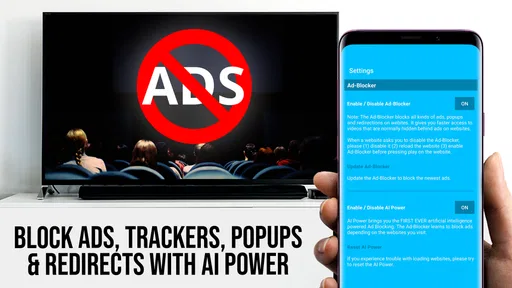
Another handy feature is the ad-blocker. It’s not 100% effective on every site, but it significantly cuts down on interruptions, making for a more enjoyable viewing experience. Plus, the app supports subtitles, which is a huge plus if you're watching foreign films or need a little extra help with dialogue.
Compatibility and Performance
I've used TV Cast Pro for Roku on both Android and iOS devices, and the performance is consistently reliable. The app is designed to work seamlessly across platforms, so you can switch between your phone and tablet without any fuss. It’s also compatible with a range of Roku models, ensuring you can enjoy its features regardless of your setup.
One thing to note is that while the app generally performs well, the quality of your Wi-Fi connection can impact streaming performance. A strong, stable connection is key to getting the best experience, but that's pretty standard for any streaming service.
Price, support, and who should pass
This is a paid app rather than a free experiment: it costs $6.99. I would judge that cost by how often I use web-based sources on Roku, not by how many streaming services I already own. If I cast a few niche site videos every week, the browser and saved-site workflow could earn its place. If I mainly watch through Roku channels, I would keep the money and use those channels directly.
Developed by 2kit consulting, it sits in the video player and editing category, though its practical role here is casting and browsing rather than editing clips. The app is rated for Everyone, and its current version is 2.44. It has a 4.5 average from around 2.4K ratings, with 621 written reviews, and has passed 50K+ installs. It first appeared on November 7, 2016, and requires Android 7.0 or later.
Those figures suggest a well-established niche tool, but popularity alone cannot tell me whether a particular website will cooperate. I would not buy it expecting every streaming site to behave like a native Roku channel, or assuming that ad blocking removes every interruption. People who need a predictable, accessibility-focused interface with large, consistent controls may also prefer a service designed around their specific needs; I would test the actual browsing and subtitle workflow before relying on it for regular viewing.
The Bottom Line
All in all, TV Cast Pro for Roku delivers on its promises. It’s user-friendly, offers great streaming quality, and includes thoughtful features that enhance the viewing experience. Whether you're looking to share family videos or stream the latest blockbuster, this app makes it incredibly easy and enjoyable.
If you're in the market for a reliable casting app that works well with Roku, I’d definitely recommend giving it a try. It’s a small investment for a big upgrade to your home entertainment setup, and once you start using it, you might wonder how you ever managed without it!
An inclusive verdict for the right kind of viewer
My recommendation is strongest for someone who already has a Roku, can comfortably browse on a phone or tablet, and wants a practical route from a website to the living-room screen. Bookmarks, playlists, subtitles, and the remote-style role make the app more useful than a one-off casting button for that routine. It can also help people share a clip with others without gathering around a small display.
I would skip it if my viewing is almost entirely through native TV apps, if I need the phone to stay out of the process, or if repeated page navigation is tiring or difficult. For accessibility, the useful question is not whether the app makes a broad promise, but whether its particular controls, text, and subtitle behavior work for the person using it. Try a familiar, short video first, then decide whether the browser-to-Roku handoff feels comfortable in your own room and network conditions.
Pros
- Easy setup and user-friendly interface.
- Streams videos in high quality.
- Supports a wide range of video formats.
- No ads for a seamless experience.
- Compatible with multiple Roku devices.
Cons
- Requires stable internet for smooth streaming.
- Limited support for certain video codecs.
- No built-in VPN support.
- Subscription required for some features.
- Initial setup can be slightly confusing.
FAQs for TV Cast Pro for Roku
What is TV Cast Pro for Roku and how does it work?
TV Cast Pro for Roku is an app that allows users to stream videos, photos, and music directly from their mobile devices to their Roku-enabled TVs. By connecting through the same Wi-Fi network, users can easily cast media content without the need for additional hardware. The app supports a wide range of video formats and offers a user-friendly interface for seamless streaming.
Is TV Cast Pro for Roku compatible with all Roku devices?
TV Cast Pro for Roku is designed to be compatible with most Roku devices, including Roku streaming sticks, Roku TVs, and Roku boxes. However, it’s important to ensure that your Roku device is running on the latest firmware for optimal performance. Users should check the app’s compatibility list on the official website or app store for specific device support.
Are there any subscription fees or additional costs associated with TV Cast Pro for Roku?
TV Cast Pro for Roku is a paid app, which means there is an upfront cost to download it. However, once purchased, there are no recurring subscription fees. Users can enjoy unlimited casting without any hidden costs. Occasionally, there may be in-app purchases for enhanced features, but these are optional.
What types of media files can be cast using TV Cast Pro for Roku?
TV Cast Pro for Roku supports a wide array of media file formats, including popular video formats like MP4, M4V, and MOV, as well as audio and image files. This versatility allows users to stream nearly any type of content stored on their mobile devices. The app also supports online video streaming from popular websites.
Do I need an internet connection to use TV Cast Pro for Roku?
Yes, an internet connection is required for TV Cast Pro for Roku to function properly. Both your mobile device and Roku need to be connected to the same Wi-Fi network to enable casting. While local media can be cast without internet, streaming online content will require a stable connection to avoid buffering or interruptions.


